
AI UI Designer (www.aiuidesigner.com) recently rolled out a significant update focused on two main features: manual editing of AI-generated UIs, and a unified design system that keeps all pages in the same project consistent in style, headers, and footers.
The ability to manually edit AI-generated UIs fills a basic feature gap. But maintaining consistency across pages—headers, footers, and overall style—is where AI UI Designer now truly shines.
Let’s walk through a test to see how to generate beautiful UIs and prototypes with AI UI Designer.
Before Designing
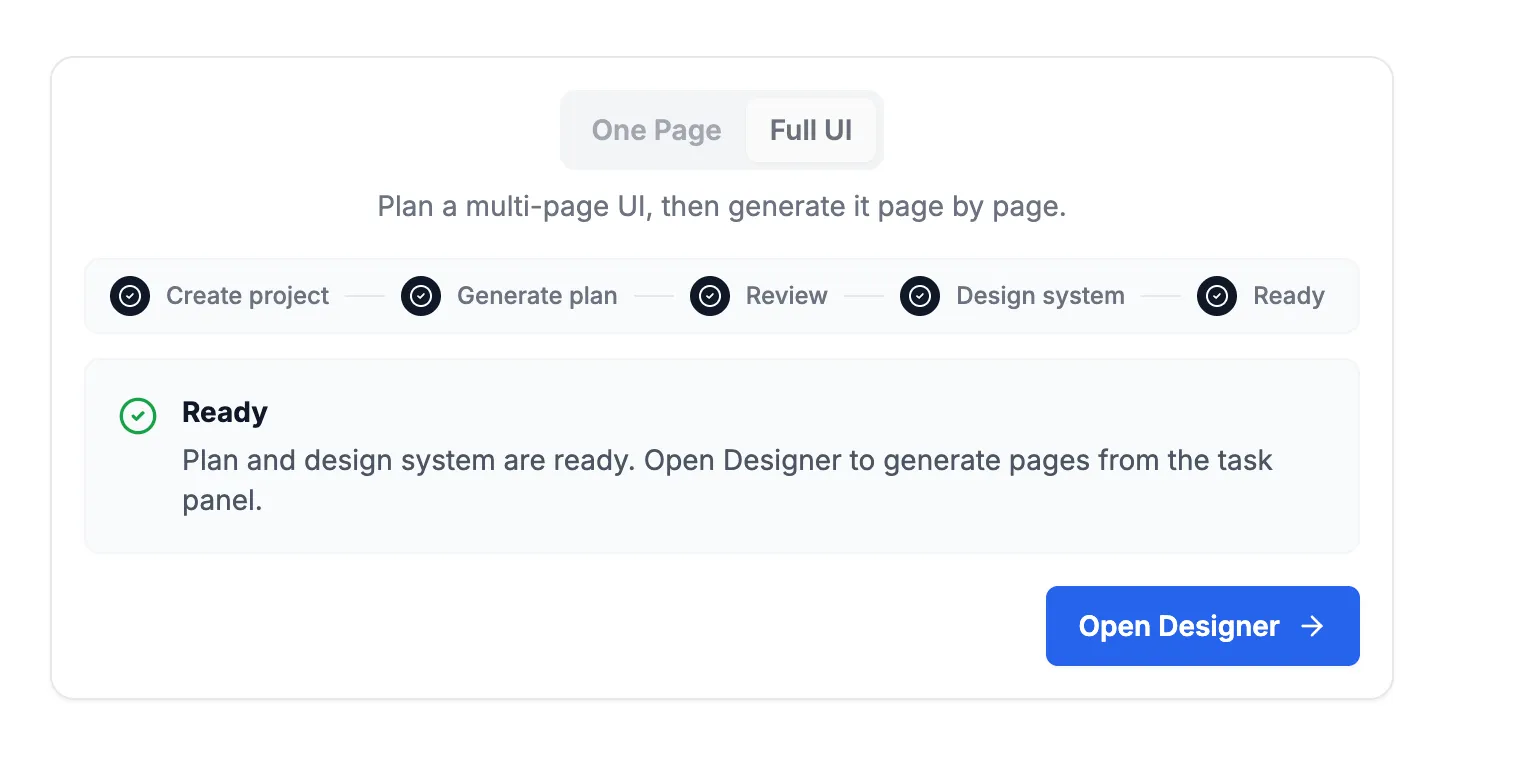
On the homepage, the entry component offers two choices representing different workflows:
- One Page — Generates a single page directly. Simple and straightforward.
- Full UI — This workflow generates a complete set of UI pages.
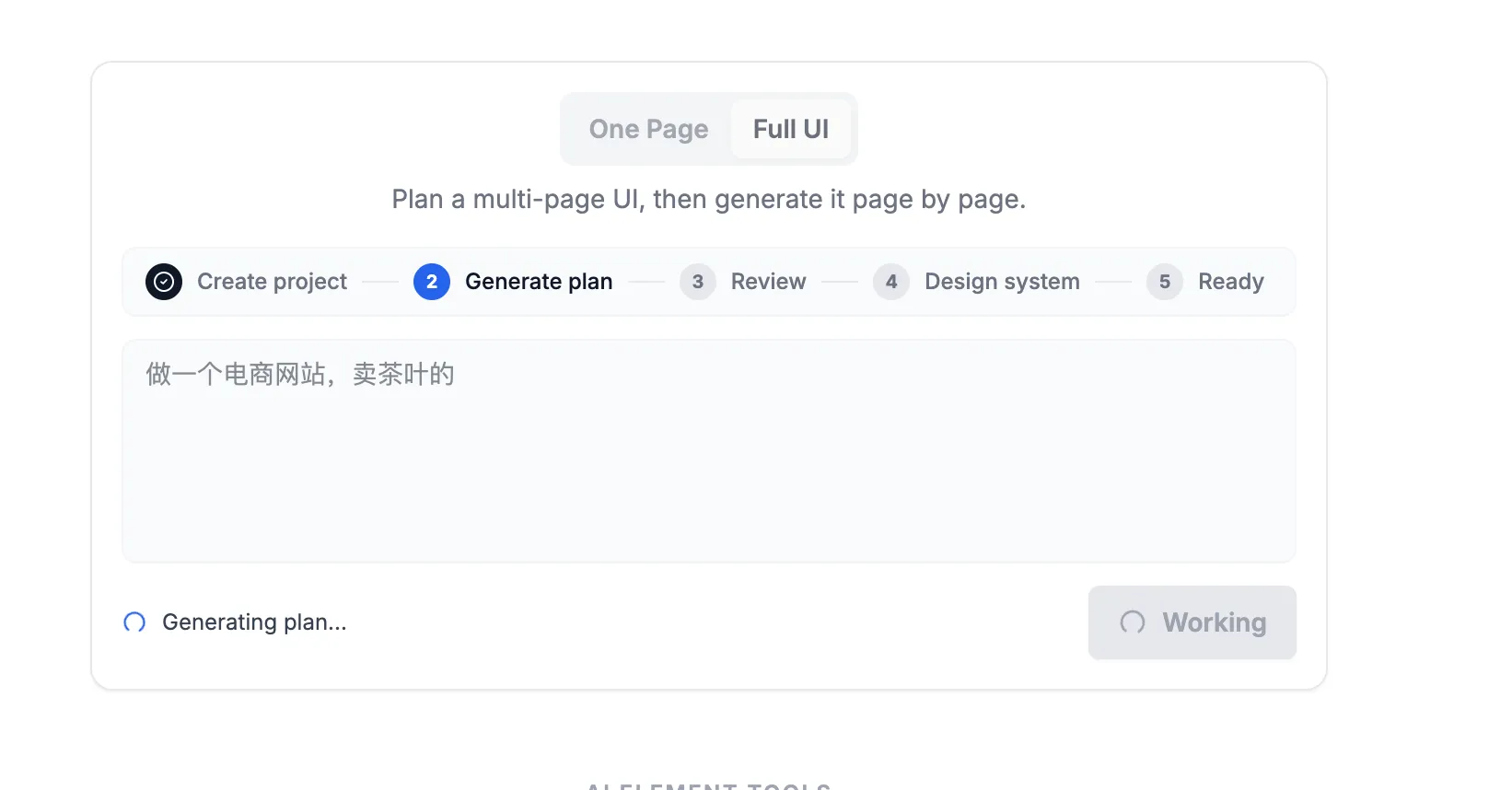
Start by describing your project, for example: “Design an e-commerce website for selling tea.”
The system then calls a Plan Agent to generate a plan.
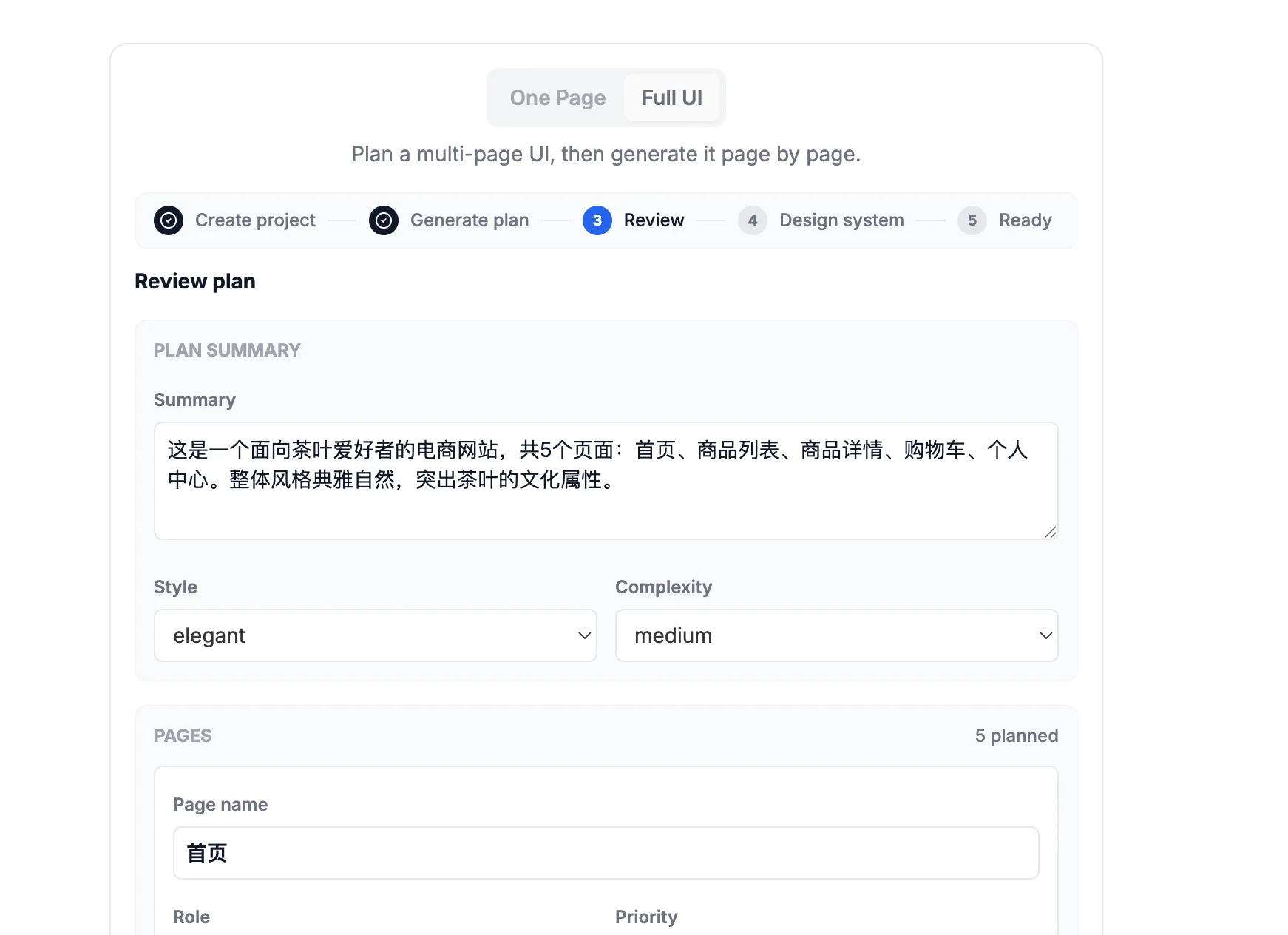
Once the plan is confirmed, a Design System is generated.
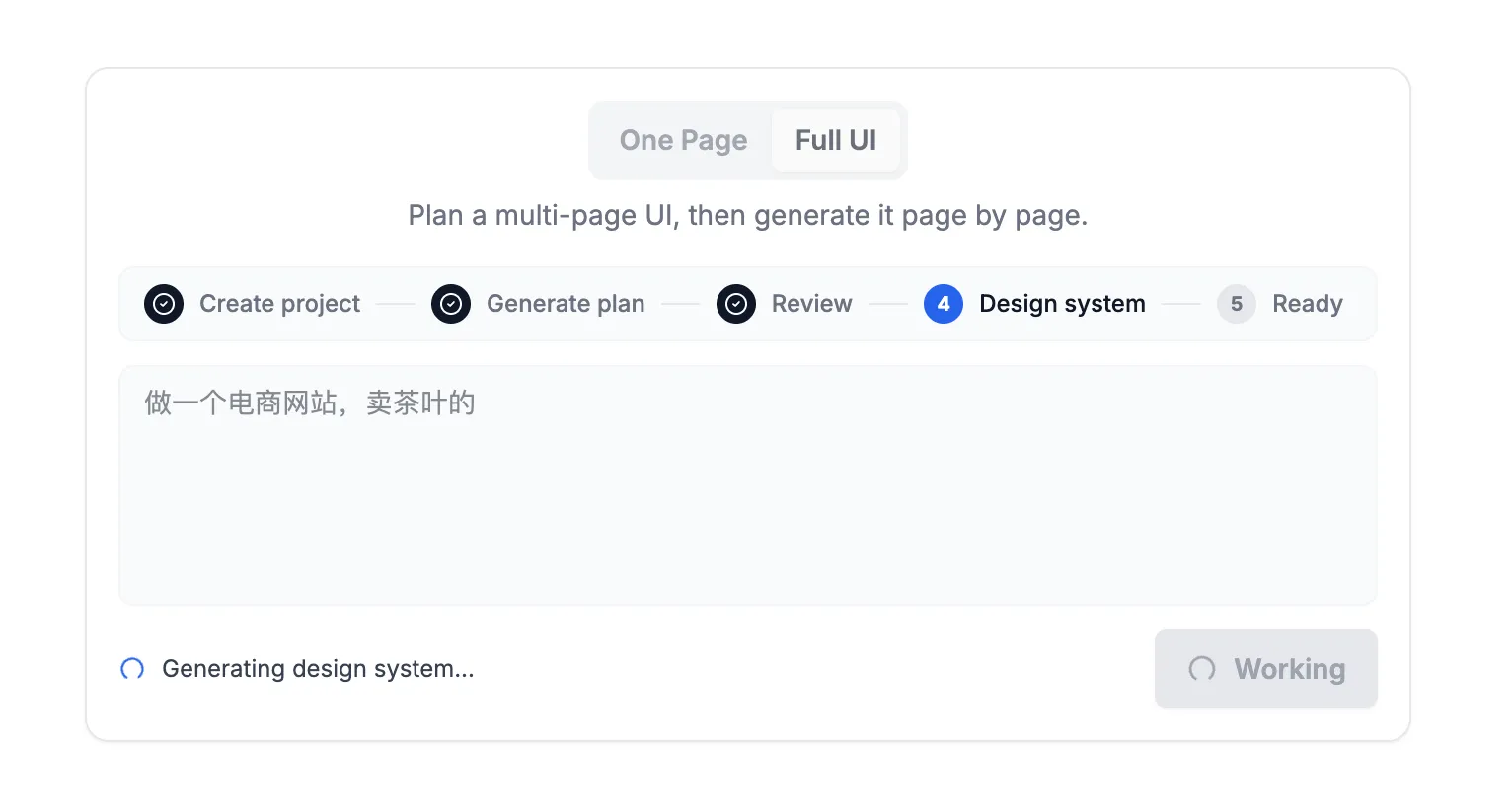
Then you enter the designer page and can start generating UIs.
During Design
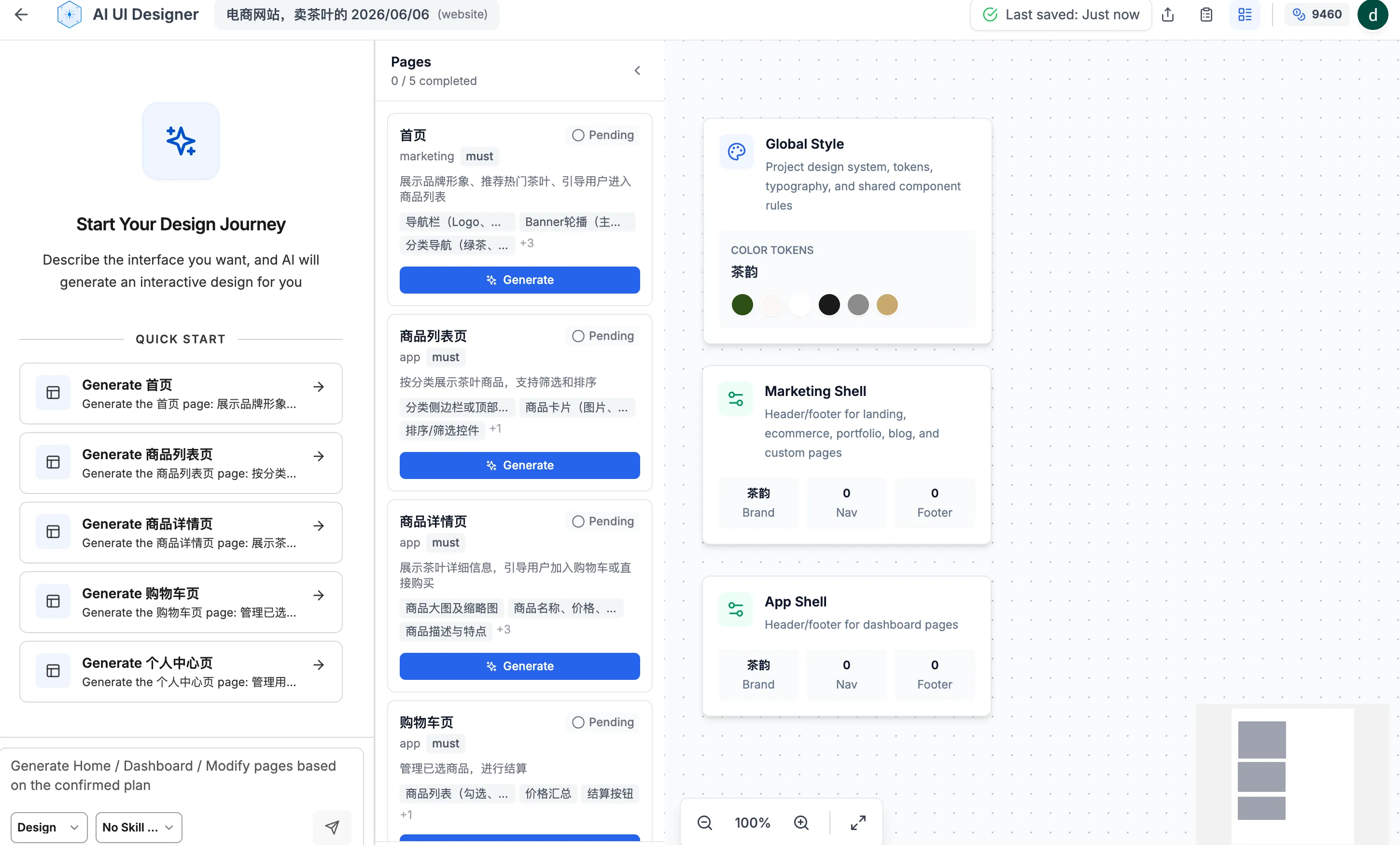
Inside the designer page, you’ll find a task list right next to the chatbot on the left, and a preview area on the right showing the design system.
Design System
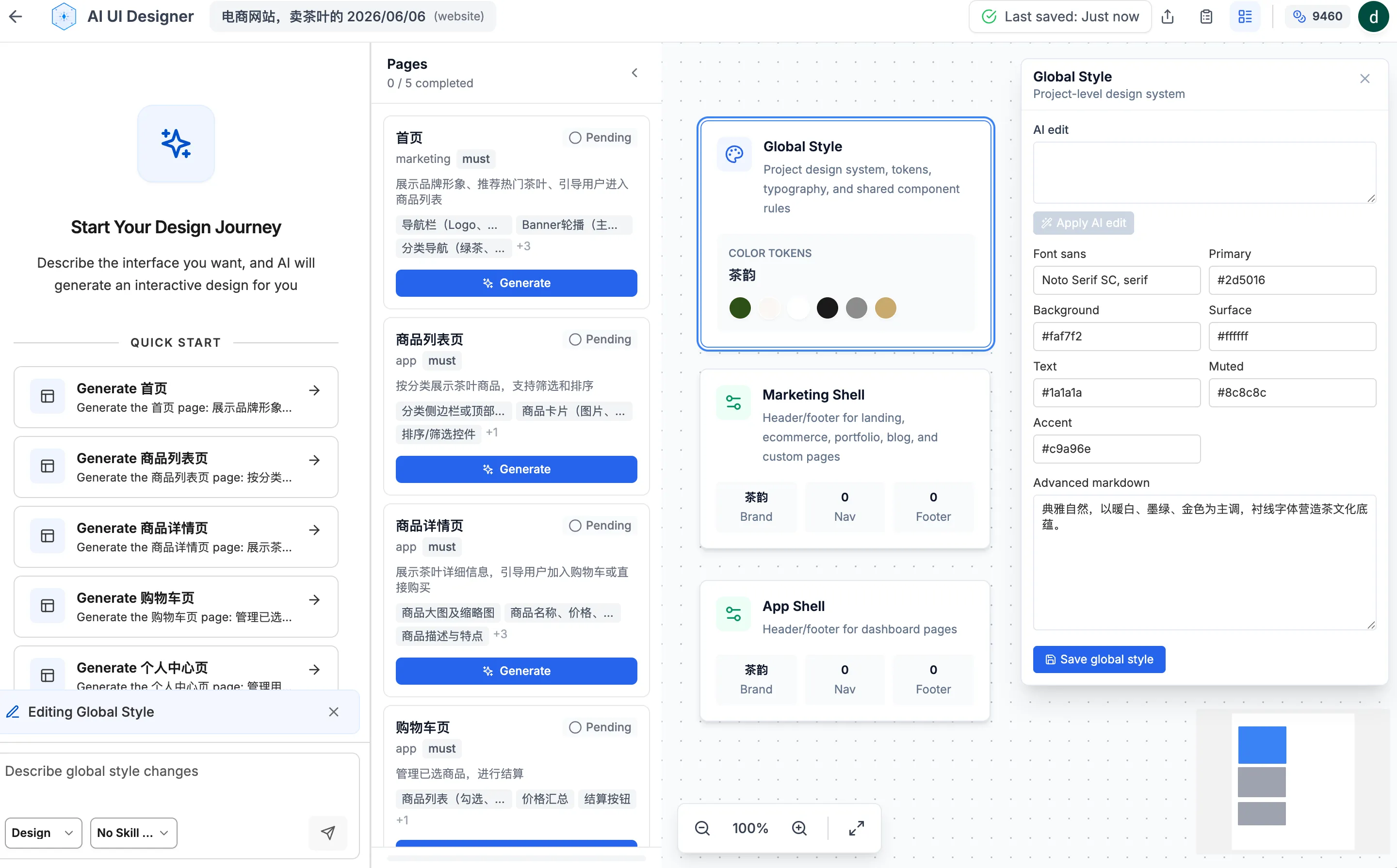
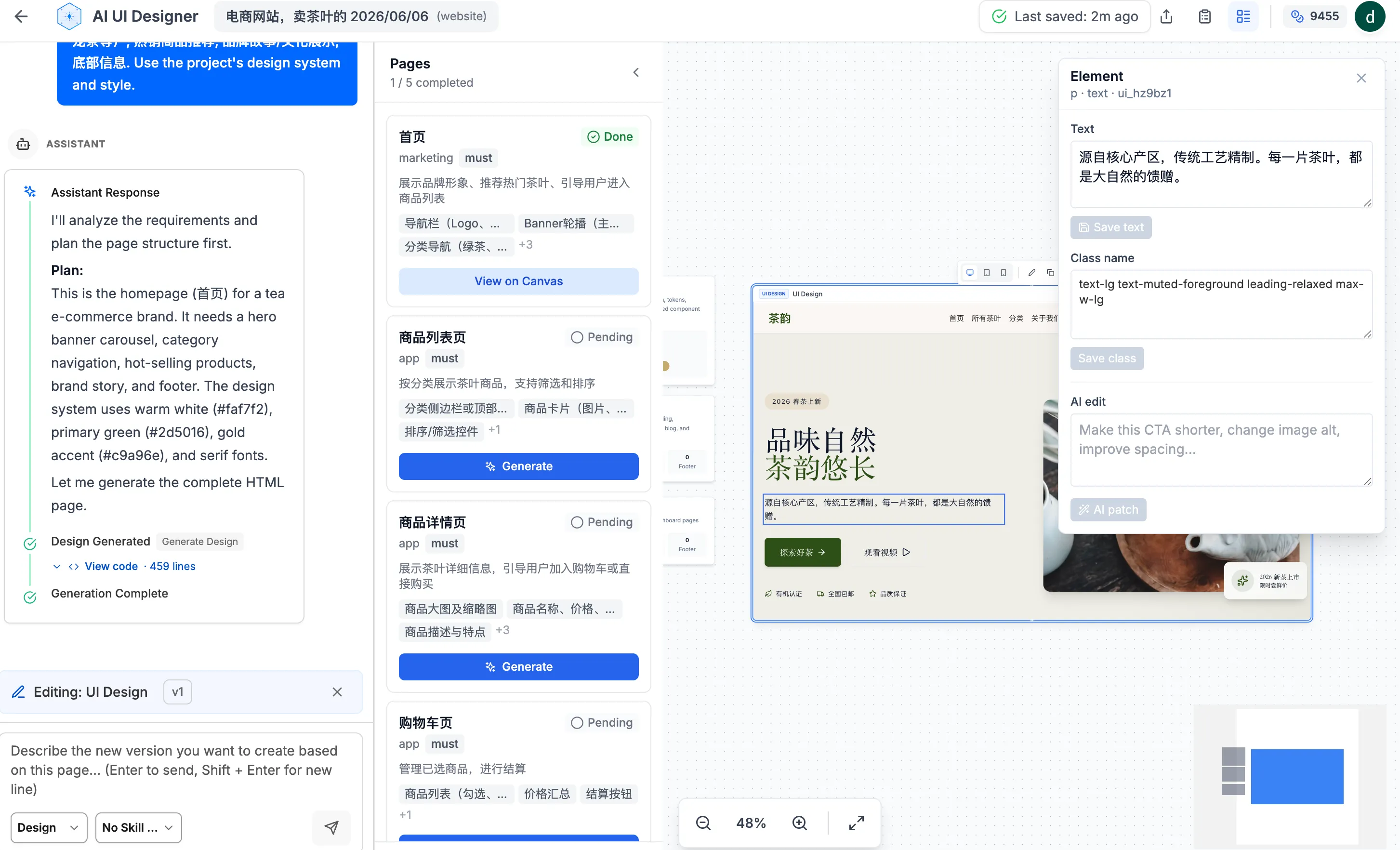
The design system includes global styles, headers, and footers—all displayed in the preview area. Click on any element to open a properties panel where you can adjust values like colors. You can also input prompts in the properties panel to let AI make modifications.
Task List
You don’t need to come up with prompts for each page anymore—they’re already generated. In the task list, click the “Generate” button for a page, and the prompt is automatically submitted. Once generation completes, the resulting UI appears in the preview area on the right.
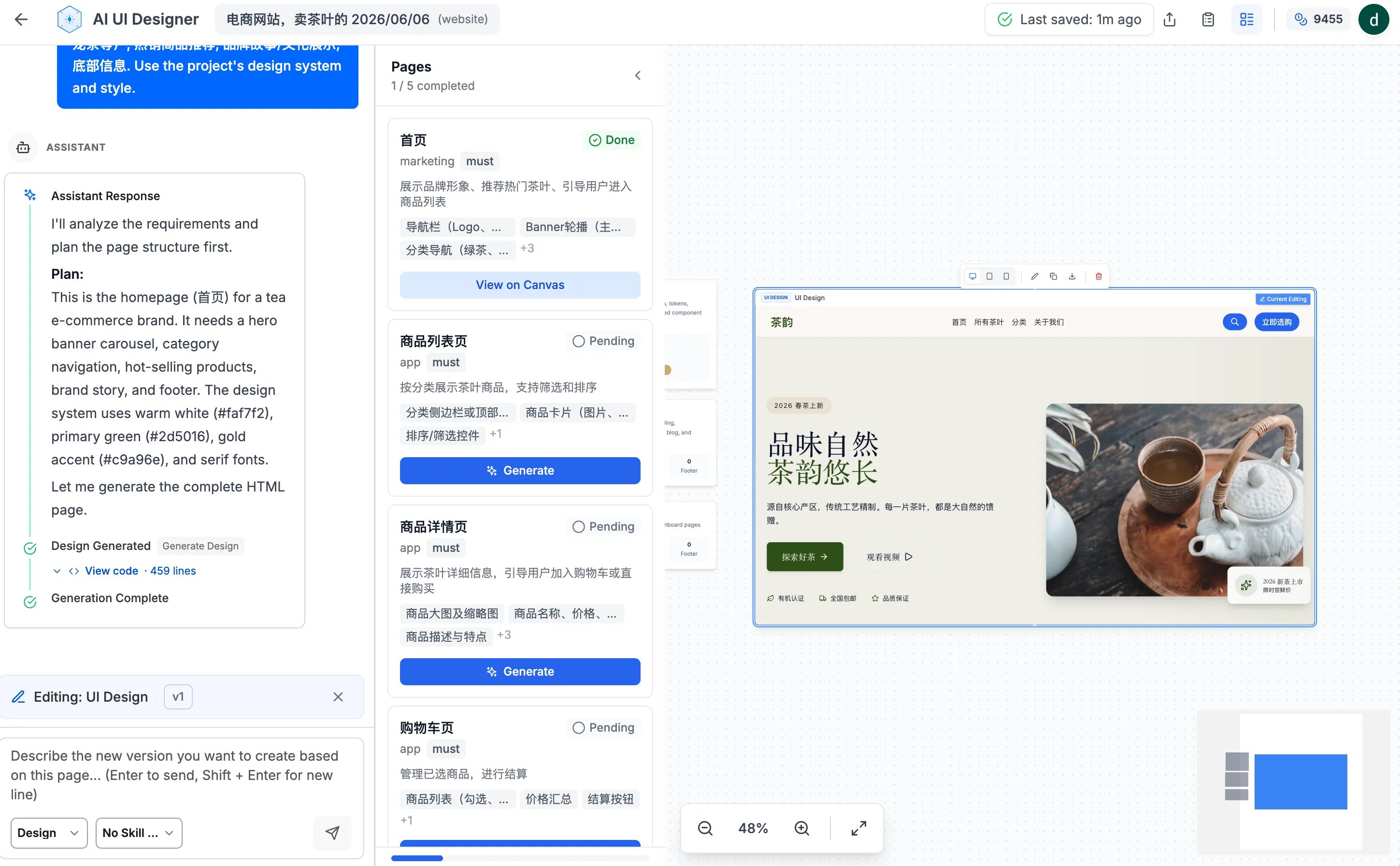
If you’re satisfied with the UI, continue clicking “Generate” on other pages. If not, there are several ways to modify it.
Modifying the UI
There are three ways to modify the generated UI:
AI Agent Modify the Entire UI
If you’re not happy with a UI, select it and submit your modification request. The AI Agent will revise it accordingly and display the new version alongside the original.
Manual Editing
Click any UI element to open its properties panel and edit values directly.
Or, if you just need to change text, double-click the element and edit the text inline.
AI-Powered Element Editing
In the properties panel, there’s also an AI edit option. Use it to modify selected elements via natural language prompts.
Exporting
When you select a UI, a floating toolbar appears with a download icon. Click it to choose from a dropdown menu—export as HTML, PNG, and more.
独立产品人日记
Notes on indie products, AI tools, growth, and engineering.
Related Articles

How to Create an AI Agent-Friendly Project
Four practical ways to make a software project easier for AI agents to understand and modify: structure, naming, directory depth, and project conventions in AGENTS.md.
Codex + Astro: The Best Combo for Creating and Publishing Content
Generate text, images, video, and 3D content with Codex, then publish instantly to the web with Astro. This is the most efficient content creation and publishing workflow for the AI era.
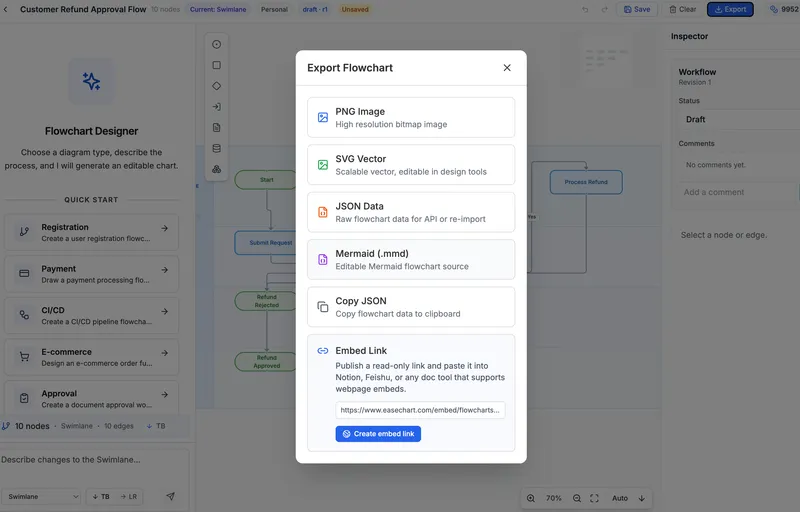
EaseChart: How to Embed AI-Generated Flowcharts into Notion
After creating a flowchart in EaseChart, you can generate an embed link and insert it directly into Notion, Feishu, and other popular online document tools.